How to Pack a Home Office and Protect Computer Equipment
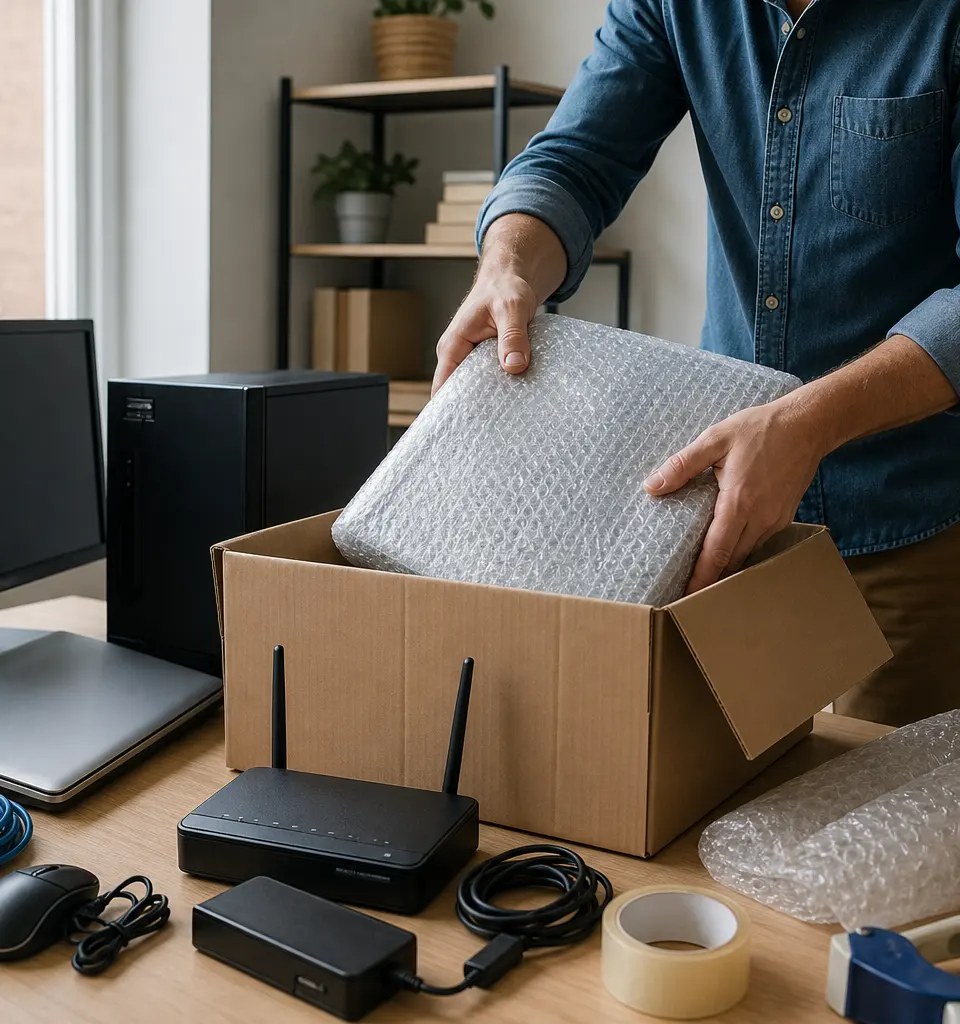
How to Pack a Home Office and Protect Computer Equipment
Moving a home office takes more than throwing items into boxes. Computer equipment is delicate, sensitive to shock, and often contains critical data. This guide explains how to pack laptops, desktops, monitors, printers, networking kit and accessories so they arrive undamaged and ready to set up. It also covers sensible pre-move checks, labelling, transport and when you might want Budget Moves to handle or arrange packing for you.
1. Start with preparation and a checklist
Good planning reduces risk. Before you start dismantling, do these essential steps:
- Inventory everything: List computers, monitors, docking stations, printers, external drives, routers, switches, UPS units and any specialised kit.
- Back up data: Make a full backup of any important files to an external drive or cloud service. Verify the backups open correctly before you power equipment down.
- Document setup: Take photos of cable layouts, port locations and how items connect. This speeds up reassembly.
- Gather manuals and licences: Keep software licences, passwords and setup notes together in a labelled folder or encrypted file.
- Schedule time: Allow extra time for careful packing — rushing increases the chance of damage.
2. Materials and tools you'll need
Using the right materials makes the difference between safe and damaged equipment. Collect:
- Strong double-walled cardboard boxes sized for monitors, towers and peripherals.
- Anti-static bubble wrap or anti-static foam for circuit boards and drives.
- Standard bubble wrap for peripherals and accessories.
- Packing paper and foam padding for cushioning.
- Zip-lock bags for screws and small parts; label them clearly.
- Permanent marker and pre-printed labels for box contents and orientation ("This way up", "Fragile").
- Cable ties or twist ties to keep cables together and avoid tangling.
- Tool kit (screwdrivers, small pliers) for disassembly.
3. Power down safely and handle batteries correctly
Follow safe shutdown procedures, then disconnect power:
- Shut down operating systems via normal shutdown — do not force power off unless necessary.
- Unplug all power leads once the device is off. Leave batteries in laptops if removal is recommended by the manufacturer; if removable and you know how, store batteries separately in a labelled container following manufacturer guidance.
- For UPS units, follow manufacturer instructions for transporting with or without batteries; when in doubt, leave batteries in place and mention this to whoever is transporting the item.
4. Packing computers: desktops and towers
Desktops contain heavy components and can be vulnerable to internal movement. Pack them as follows:
- Remove loose parts: Take out optical drives, extra PCI cards and any user-serviced components if you are confident to do so. Keep screws and parts in clearly labelled bags.
- Secure drives: If you can, secure or brace hard drives to limit movement. Use anti-static foam or dedicated drive boxes.
- Wrap the case: Use anti-static bubble wrap around the chassis, then cushion inside a double-walled box with padding on all sides so the unit does not touch the box walls.
- Fill voids: Use foam or crumpled paper to ensure the box cannot be compressed onto the case.
- Label: Mark the box with contents, the room it belongs to, and an orientation arrow. Note any parts you removed on the outside.
5. Packing laptops and tablets
Laptops are easier to pack but still need protection:
- Clean and power down normally. Remove external peripherals and SD cards.
- Wrap the laptop in anti-static bubble wrap; place it in a snug padded box or laptop sleeve within a box with cushioning.
- Pack the power adaptor and any docks separately in labelled bags, and include near the laptop or in a clearly labelled accessories box.
- If the battery is removable and manufacturer guidance suggests transporting separately, store it in a labelled container.
6. Monitors and screens
Monitors and flat screens are thin but fragile at the edges and corners:
- Remove stands and pack them separately. Wrap screens face-to-face with soft foam or use original cartons when available.
- Use corner protectors and wrap the entire monitor in bubble wrap, then place in a properly sized box with padding either side to prevent pressure on the panel.
- Mark "Fragile" and "This way up" on the box. Transport screens in an upright position rather than laid flat where possible.
7. Printers, scanners and specialty equipment
For printers and scanners:
- Remove paper trays and ink/toner cartridges (pack ink cartridges in sealed bags to avoid leaks). Keep toner cartridges upright.
- Use plenty of internal padding to prevent the machine being compressed during transit.
- For bulky or heavy office printers, consider professional assistance as moving can be awkward and may require multiple people.
8. Networking kit, external drives and accessories
Network switches, routers, NAS boxes and external drives deserve careful packing:
- Label and bag all patch leads and power supplies; coil cables neatly and secure with ties.
- Store small items (SD cards, dongles, screws) in separate labelled bags and tape these to the corresponding device or put them in a clearly labelled box.
- For external hard drives, use anti-static wrap and place them in small boxes with padding.
- Photograph port arrangements for routers and switches, and note static-sensitive components.
9. Labelling and moving-day organisation
Clear labelling makes reassembly straightforward:
- Label each box with room destination and a short contents list (e.g. "Home office — monitor, cables, stand").
- Number boxes and keep an index sheet listing box numbers with their contents for quick reference.
- Keep an essentials box with immediate-setup items: laptop, power leads, phone charger, one monitor (if needed), login notes and backup drive.
- Carry small but critical items (backups, licences, passports) with you personally rather than leaving them on a van.
10. Transport considerations
If you are moving the equipment yourself, use a vehicle with a flat, clean load area. For van transport or a hired removal team, take these precautions:
- Keep computer equipment upright where recommended and strap boxes to avoid sliding.
- Avoid stacking heavy boxes on electronics — put heavy furniture below and fragile boxes on top.
- Temperature-sensitive items (batteries, some drives) should not be left in extreme heat or cold for long periods.
11. On arrival: unpacking and setup
- Unpack the essentials box first and reconnect one system to check backups and software licensing.
- Refer to the photos taken before the move to reconnect cables in the correct order.
- Allow devices to acclimatise to room temperature before powering up if they’ve been in extreme temperatures.
- Check drives and systems for any unusual noises or behaviour immediately after powering on; address faults before putting equipment back into heavy use.
12. When to get professional help from Budget Moves
Budget Moves provides and arranges removal services across London. The owner personally carries out selected moving jobs and we can organise packing and protective transport for fragile electronics through suitable removal professionals. Consider contacting Budget Moves if:
- You have heavy or awkward equipment (large printers, multiple monitors, server racks).
- You prefer trained staff to pack static-sensitive components.
- You want help co-ordinating a move in central London where parking and access complicate transporting delicate kit.
For a quick quote or to discuss packing services, use our booking form and tell us about the most delicate items so we can recommend appropriate packing materials and handling: Get a quote.
13. Practical packing checklist (printable)
- Full backup completed and verified
- Photos of setup and labelled cables
- Boxes: double-walled for towers/monitors, small padded for drives
- Anti-static bubble wrap and foam
- Bubble wrap for peripherals, corner protectors for screens
- Zip-lock bags and labelled parts bags
- Permanent marker and labels, tape
- Essentials box with immediate-setup items
14. Final tips and common pitfalls
- Do not rely on a single backup; keep a second copy or cloud snapshot until systems are confirmed working.
- Keep serial numbers and warranty papers together.
- Don’t stack heavy items on monitors or laptops.
- When in doubt about dismantling specialised equipment, consider professional packing to avoid voiding warranties or causing damage.
If you'd like Budget Moves to pack computer equipment for your London move or to arrange specialist packing, start here: Get a quote. For more planning tools and step-by-step checklists, see our moving planner and our dedicated packing service page at Packing Services.
Note: This guide gives general, practical advice. For manufacturer-specific guidance (for example, data centre or server rack moves) consult the device manual or the manufacturer before transporting sensitive or warranty-covered equipment.
Get a Quote